Creating your account and signing in
You can use Google, LinkedIn, or your e-mail with a password. If you forget the password, an e-mailed code gets you in.
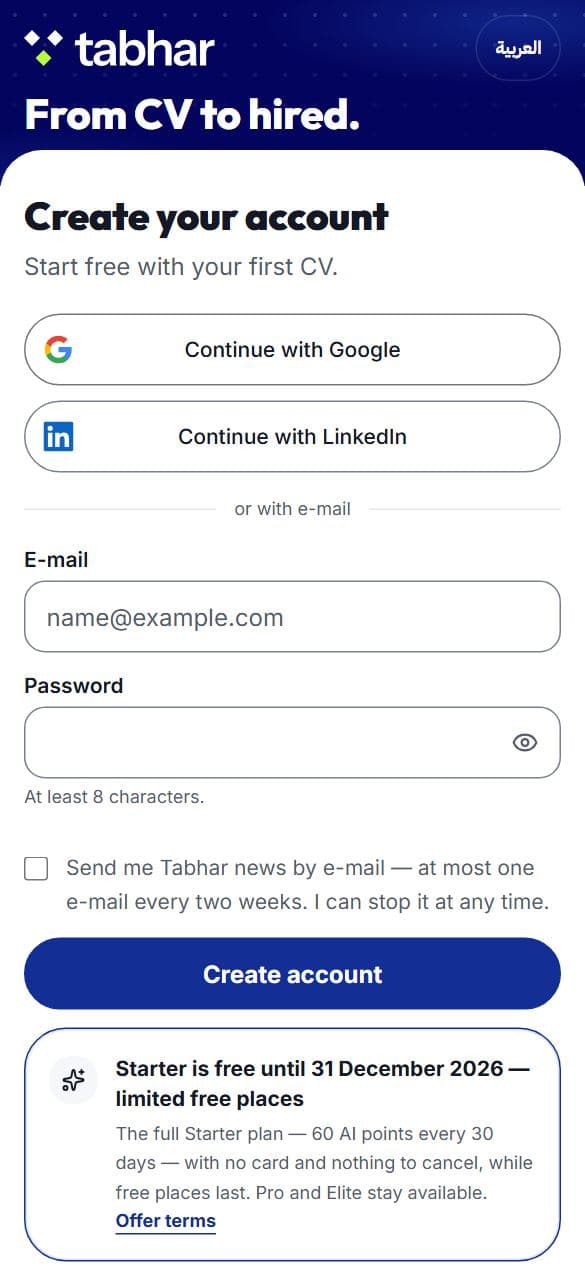
Create your account
Open “Create your account” and choose Continue with Google, Continue with LinkedIn, or your e-mail and a password of at least 8 characters.
The box about Tabhar news is optional and off until you tick it.
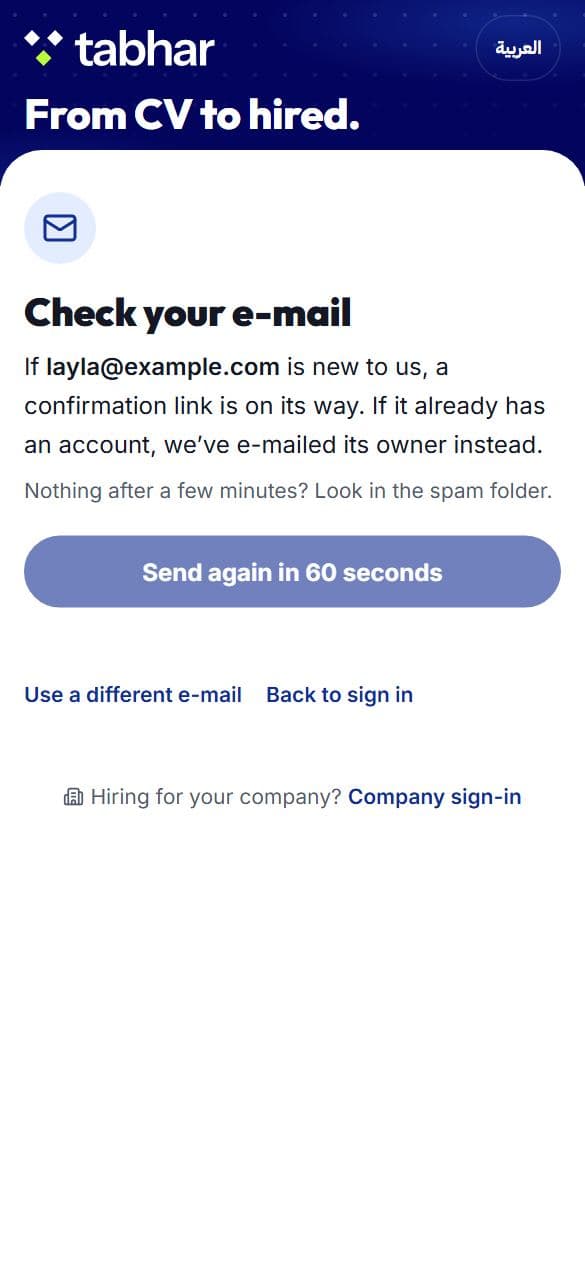
Confirm your e-mail
With e-mail and password, “Check your e-mail” appears next. Open the link we sent, in the same browser, and you are in.
Nothing after a few minutes? Look in the spam folder, or press Send again (it is available after 60 seconds). Use a different e-mail takes you back if you mistyped it.
For your privacy this page looks the same whether or not the address already has an account. If it does, we e-mail its owner instead.
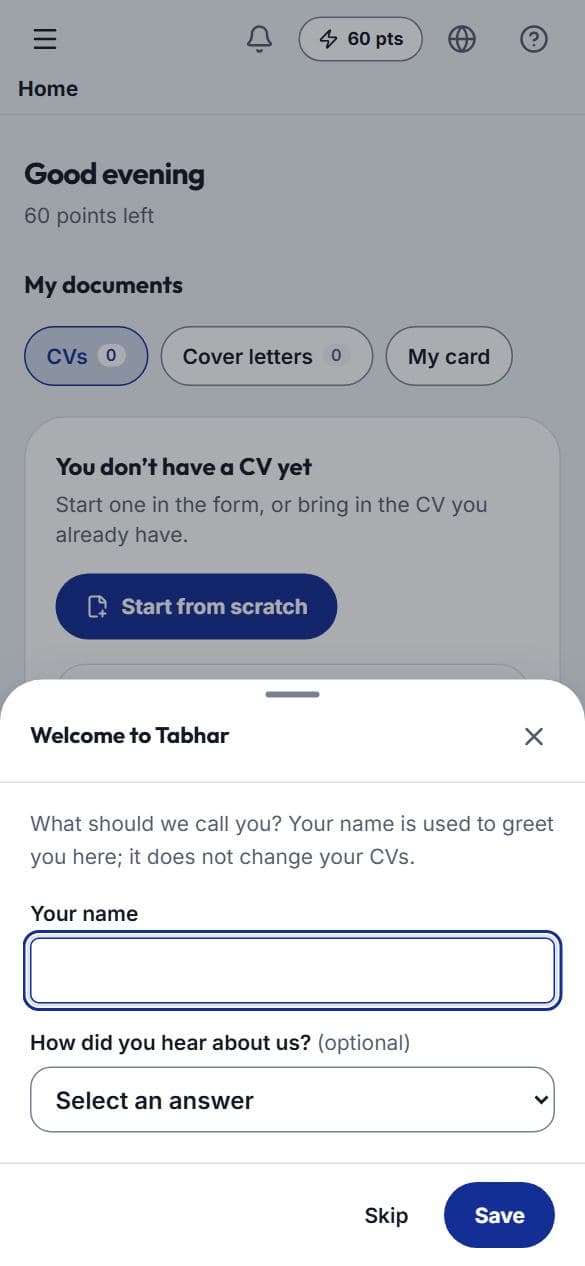
Your name, once
On your first visit to Home we ask what to call you. Your name greets you in the app and does not change your CVs. If you sign in with a provider that gives us your name, we do not ask.
Skip is fine, and we will not ask again. You can add or change your name later in Settings.
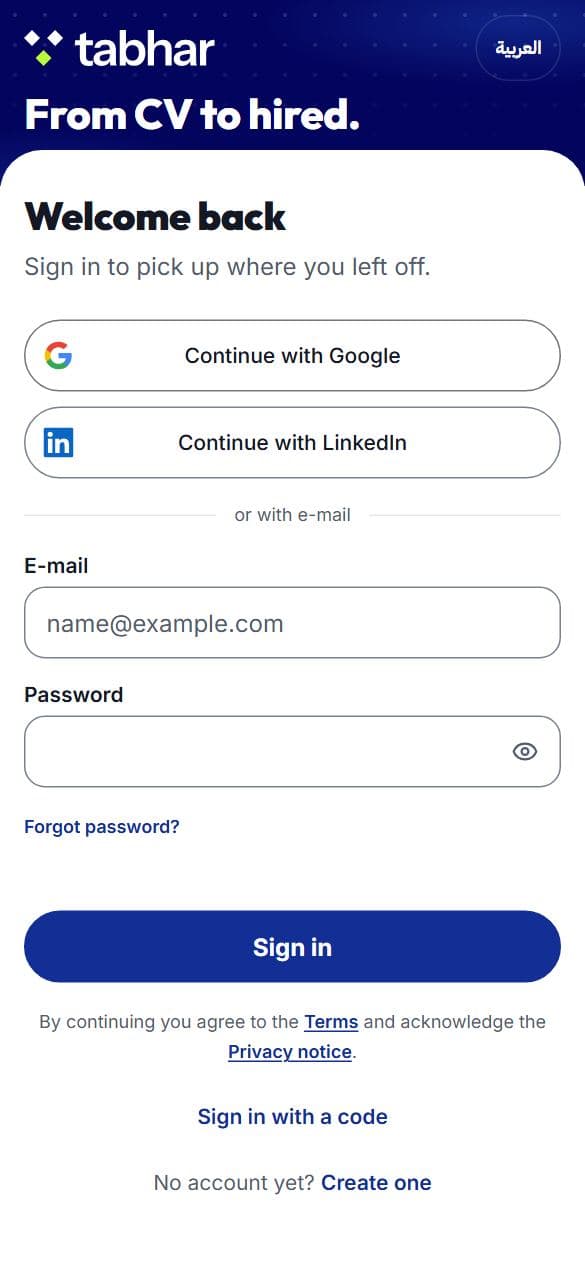
Sign in
Enter your e-mail and password and press Sign in, or use Google or LinkedIn if that is how you joined.
Forgot your password, or never set one
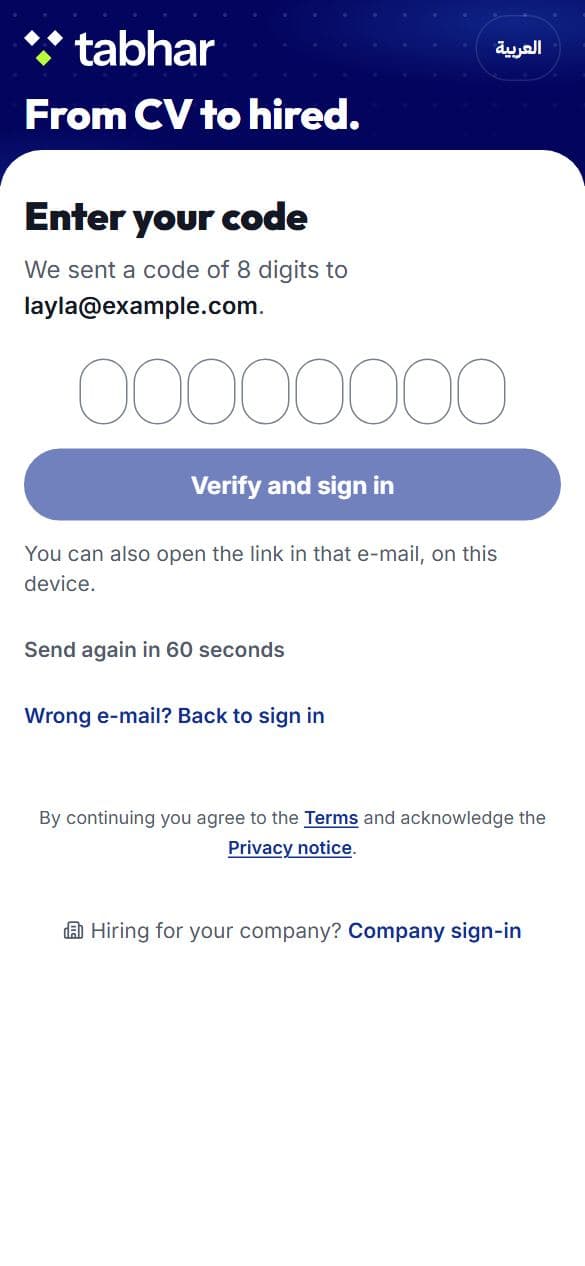
Press “Forgot password?” or “Sign in with a code”, enter your e-mail, and press E-mail me a code. Type the code from the e-mail, or open the link in that e-mail on the same device.
A code works once and only for a short time. Once you are in, you can set a new password in Settings, under Sign-in and security.
If a link says it has expired
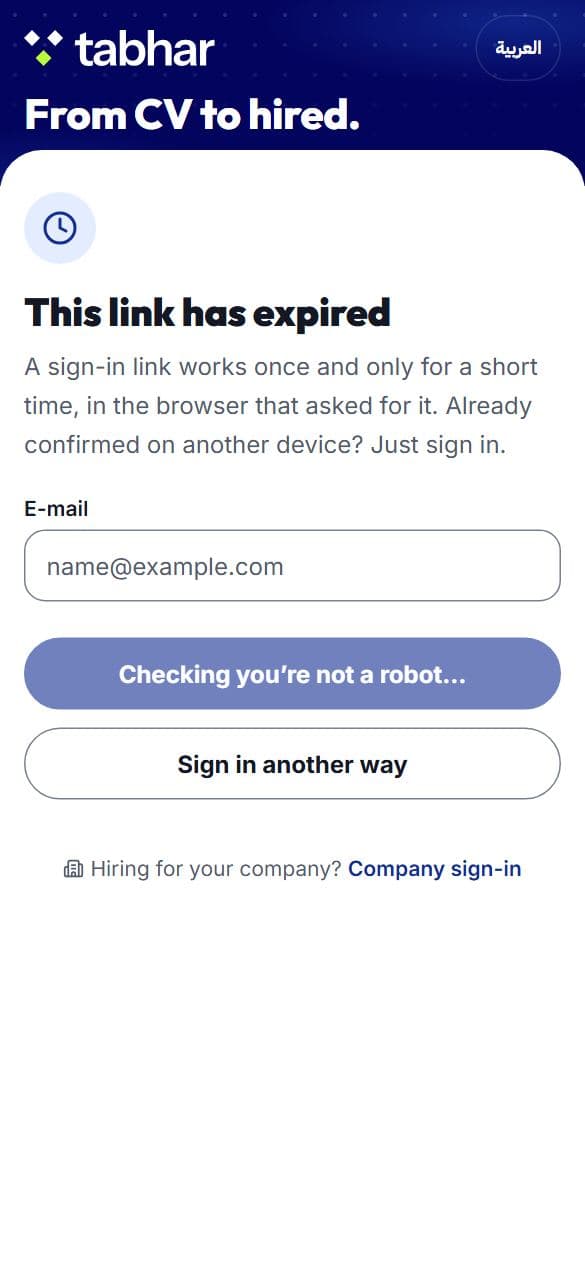
An e-mailed link works once, for a short time, in the browser that asked for it. So “This link has expired” also appears if you open a link on another device, even when your e-mail was confirmed. Try signing in first, or get a new code from the same page.
If something stops you
- That e-mail and password don’t match: check both, or sign in with a code. For your privacy we never say which one was wrong.
- Too many attempts: wait a few minutes and try again.
- Trouble with the robot check: use Google or LinkedIn, or get a code by e-mail.
Signing in for a company
If you hire through Tabhar, use “Company sign-in” at the bottom of these pages. It is the same account and the same password. An account with no company access goes to its own dashboard.