What to put on a digital business card, how the QR code and the save-to-contacts button work on iPhone and Android, and how to print it — step by step.
A digital business card is a business card that lives on a web page. People open it from a link you send or by scanning the QR code on your printed card, see who you are and how to reach you, and save you to their phone's contacts with one tap. The good ones also give you a paper version, because some meetings still end with a card changing hands.
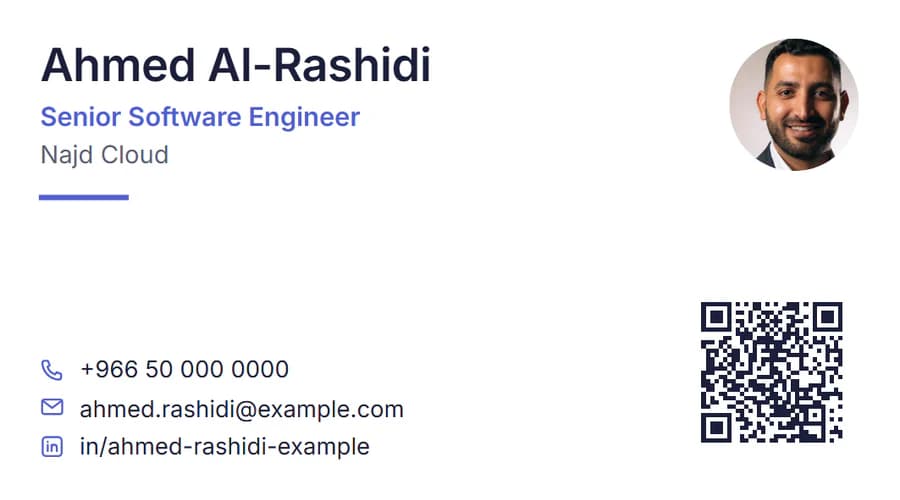
This guide walks through what to put on one, how the QR code and the save button actually work on iPhone and Android, and how to print it — using Tabhar's free card as the example, with an invented person, Ahmed Al-Rashidi, a software engineer.
What a digital business card is (and is not)
It is three things that work together:
- A card page at a link of its own, which opens on any phone in the browser. Nobody has to install an app to see it.
- A QR code that holds that link, so a camera can open the page in a second.
- A "Save to contacts" button that hands the phone a contact file. That file is a vCard, the standard format for contact information (RFC 6350), so the phone's own Contacts app knows what to do with it.
It is not a replacement for your CV, and it should not try to be. A card answers "who is this and how do I reach them". If someone wants the full story, a link on the card page can take them to your CV — see sharing your CV by link.
What to put on it
Less than you think. A card that tries to say everything says nothing at a glance.
- Your name, as you want it saved. This is what appears in the other person's contacts. Use the name you go by at work.
- Your job title and company. If either is long, write a shorter version for the card; the full one can stay on your CV.
- One phone number you answer, a work email, and either a website or your LinkedIn profile (worth tidying first — see building a LinkedIn profile that supports your CV).
- WhatsApp, if you use it for work. On the card page it becomes its own button.
- A photo or a logo, if the design has room for one.
Leave out your home address and your date of birth. Nobody needs them to call you back.
How to make one in Tabhar, step by step
- Open "My card" in your dashboard and fill it from a CV. Tabhar copies your name, job title, current employer and contact details from the CV you pick. It copies only what the CV already says — nothing is made up — and you can change any field.
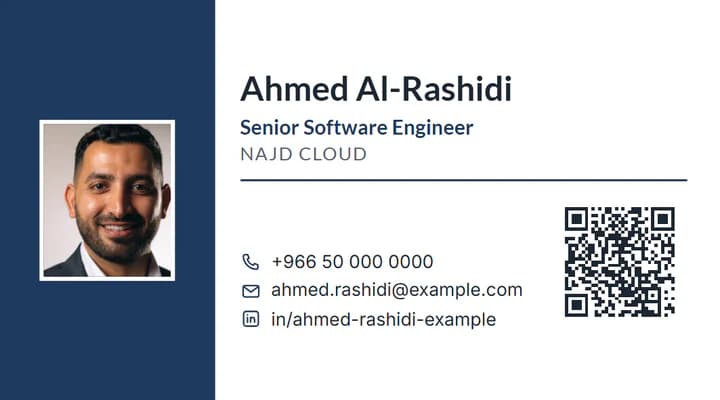
- Choose a design and a size. The editor offers three sizes: 90 × 50 mm (labelled the Gulf standard), 85 × 55 mm (Europe) and 89 × 51 mm (the US 3.5 × 2 inches). It checks that every line fits at a readable size and tells you when one does not, so you can shorten it or pick a design with more room.
- Choose what goes on the back: the card in your other language, your logo with the QR code, or your contact details with the QR code. Some designs also have room for a small QR code on the front.
- Share or print. Copy your link, show your QR code, or download the print files.
How the QR code works
The QR code holds your card's private link — a long, random address that only people you give it to (or who scan your card) will ever have. On an iPhone, the Camera app does the rest: Apple's instructions are to hold the phone so the code appears, then tap the link (Apple Support). Android phones recognise QR codes in the camera too (Google Pixel Help).
Two things worth knowing before you print a box of cards:
- The link can be replaced, and replacing it is final. If you make a new link, the old link and every printed QR code that carries it stop working. That is the point — it is how you switch off a card you handed to the wrong person — but it also means your printed cards go with it.
- A memorable address is optional. On paid plans you can add an address such as /c/your-name next to your private link. It is easier to type, and for the same reason it can be guessed.
What people see when they scan it
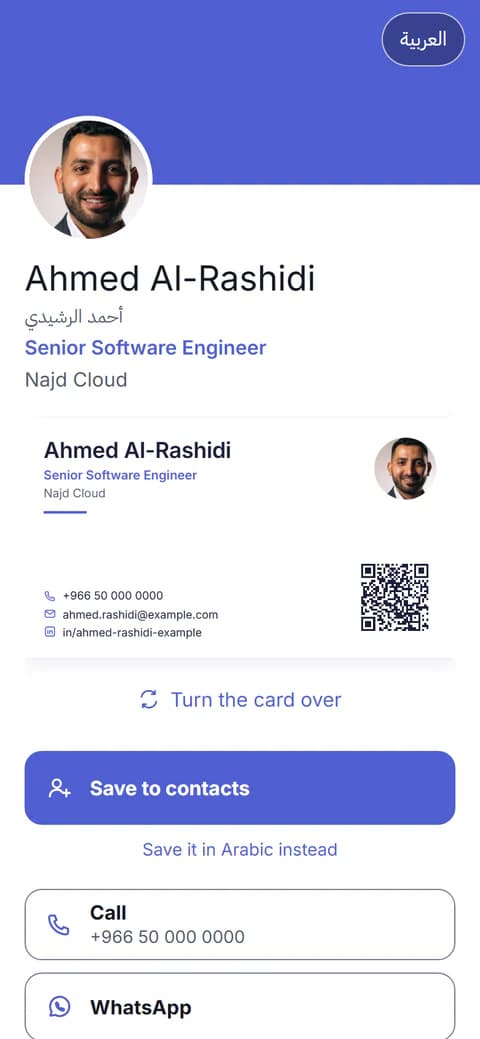
The card page shows your card first — a tap flips it between front and back — and under it the buttons you chose: save to contacts, call, WhatsApp, email, LinkedIn, your website, and, if you share it, your CV. It opens in your visitor's language — Arabic or English, whichever their phone prefers — with a button to switch. The page can also show your QR code on screen, which is handy when you meet someone and have no paper card on you: open your own card page and let them scan your phone.
Saving you to their contacts
This is the part people care about most, and it works slightly differently on each phone.
- On iPhone, the contact opens as a preview first. Scroll down and tap "Create New Contact" — the card page says so on an iPhone, because the button is easy to miss.
- On Android, the phone offers to add the contact. On some phones the file downloads first; opening it adds it to Contacts, the same way Google describes importing a .vcf file (Google Contacts Help).
If your card is in Arabic and English, your visitor can save it in either language.
Printing it
You get the print files on every plan, including Free:
| File | What it is for |
|---|---|
| PDF with 3 mm bleed | the background runs 3 mm past the cut line, so a slightly off cut leaves no white edge |
| PDF with bleed and crop marks | for a print shop that cuts by the marks |
| Front and back images at 300 dpi | exact-size pictures, for a shop or an online printer that wants images |
Ask your print shop which one they want, and scan the QR code on a test print before ordering a hundred.
Keeping it up to date
Edit your card and the card page shows the new details at once. The QR code on cards you have already printed keeps opening that page, as long as you keep the same link — so a new job title does not mean a new box of cards, unless you want the paper to say it too.
You also see how the card is used, in counts only: the Free plan shows the total number of views; paid plans add saves, and QR scans against link opens, day by day. Tabhar never records who your visitors are.
Privacy
Your card page is kept out of search engines and its link is long and random, so it is not a public profile — it is a page for the people you hand it to.
Is it free?
Yes. The Free plan includes one digital business card with the free designs, the print files and a small "Made with Tabhar" mark on the card page, and the card never uses AI points. Paid plans add more cards, every design, your own colour and cover image, full counts, and no mark — the numbers are on the pricing page, and everything the card does is on the digital business card page.
Sources
- RFC 6350: vCard Format Specification — IETF.
- Scan a QR code with your iPhone or iPad — Apple Support.
- Scan QR codes with your Pixel phone — Google Pixel Help.
- Import your contacts into Google Contacts (Android) — Google Contacts Help.